
A decade of intake forms were in a couple of filing cabinets. The case notes were in a five-year-old spreadsheet on someone’s laptop. The “grant narrative” existed in four versions with names like “FINAL_v3_REAL-FINAL.docx”, and nobone was sure which version had been submitted to what organizations… and when.
This is a composite case study drawn from similar Microsoft 365 for Non-Profits engagements with small service organizations in Southwest Florida. Details have been anonymized and combined with occasional flair added for poetic emphasis.
Key Takeaways
- Microsoft 365 Business Premium is available to eligible nonprofits at a steep discount — many organizations qualify and never apply.
- The hardest technology problem in a small nonprofit isn’t the software. It’s intern, volunteer, and board member turnover.
- Scanning is not just a printer feature. It’s the on ramp to every paperless workflow the organization will need later.
- A well thought out photo consent policy has to exist before the cameras do.
The Situation
A direct-service nonprofit in Lee County with eight full-time staff and up to a dozen rotating interns each year. Real programs, real clients, and a technology environment held together by goodwill (and some tape).
Some specifics:
- Staff used personal Gmail accounts for organizational business, including client matters
- Documents moved on USB drives and email attachments
- One aging multifunction printer served the entire office and jammed during every grant cycle
- Interns arrived with no accounts, no access, and no instructions for handling sensitive information
- The Executive Director was the de facto IT department
It’s actually a common case, and often it describes most small nonprofits (and some large ones). These are common pain points, especially when the focus in the early days is solving a specific need.
Why Personal Email Was the Urgent Problem
Everything else on that list was inefficient. The personal email was a liability.
Client information sitting in staff-owned Gmail accounts means the organization does not control its own records. When a staff member leaves, the records leave. There is no retention policy, no legal hold capability, and no way to answer a funder’s security questionnaire honestly.
That framing — not “you should be more organized” — is what moved the Board of Directors to approve this project.
Microsoft 365 for Nonprofits
We verified eligibility through Microsoft’s nonprofit program and licensed the organization accordingly. Eligible 501(c)(3) organizations receive substantial nonprofit pricing, and in many cases a number of Business Premium seats at no cost.
Important: program terms, seat grants, and eligibility rules change. Verify current offerings directly with Microsoft rather than relying on a figure in a blog post.
What We Configured
Email and identity. Organizational addresses on the nonprofit’s own domain for every staff member and intern. Shared mailboxes for program areas — intake@, volunteer@ — so institutional email survives staff turnover.
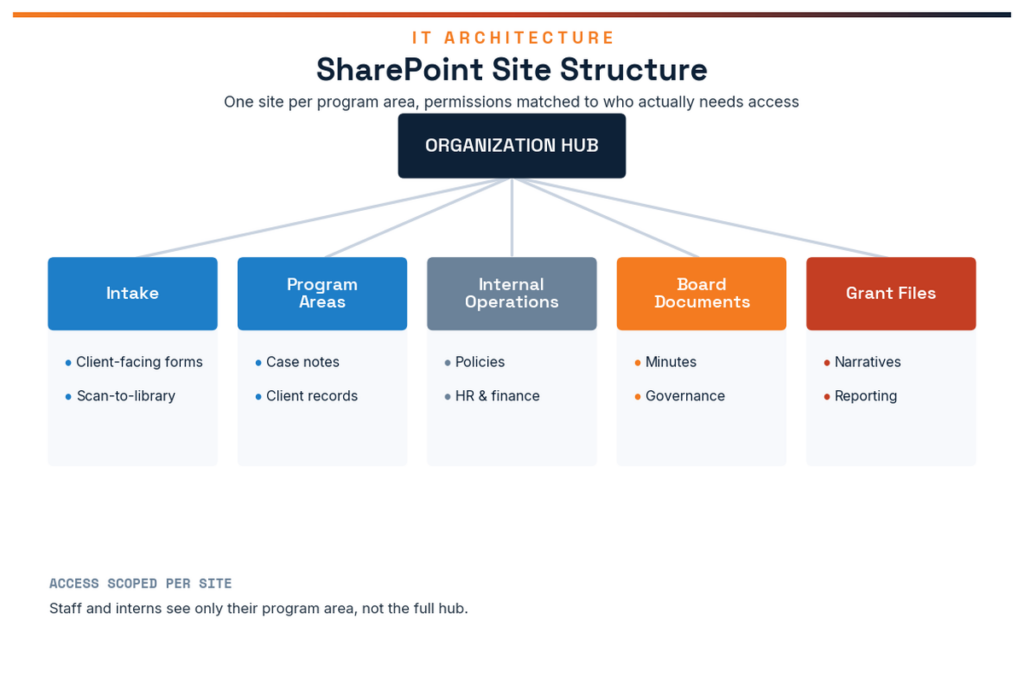
SharePoint document structure. A site per program area with permissions matched to who actually needs access. Client-facing materials, internal operations, board documents, and grant files each got a defined home.
The organizing principle was simple: any staff member should be able to guess where a document lives.
Teams. Internal communication moved off group text threads. Channels by program, with the side benefit that conversation history stays with the organization.
Security baseline. Multi-factor authentication on every account. Conditional access. Data loss prevention rules flagging outbound messages containing likely personally identifiable information. Retention policies aligned to grant recordkeeping requirements — the same baseline we build into every Microsoft 365 for nonprofits deployment, regardless of org size.
The Intern Problem
Twelve to fifteen interns rotating every year is the defining operational constraint of a small nonprofit, and it’s the piece most IT plans ignore.
We built onboarding and offboarding as a repeatable process rather than a scramble:
- A licensed account template with pre-set group membership, so a new intern gets correct access on day one instead of week two
- Access scoped to their program area only — interns do not need the finance folder
- A one-page technology orientation folded into existing intern onboarding
- A defined offboarding step that revokes access and reassigns owned files to the program’s shared location
That last item is the one organizations forget. Work product created by an intern who left in December should not disappear with them.
Workstations, Scanning, and Printing
Eight staff workstations and four shared intern stations, configured identically: Windows 11 Pro, Microsoft 365 apps, automatic updates, disk encryption, and OneDrive Known Folder Move so desktop and documents back up without anyone remembering to do it.
Two network multifunction devices replaced the single failing unit — a higher-capacity device near administration and a compact scanner in the program area.

Scan-to-SharePoint was the change that mattered most. Staff scan an intake packet directly into the correct program library, with a naming convention, from the device. No emailing yourself a PDF. No thumb drive.
Secure print release was enabled so documents containing client information don’t sit in an output tray.
Cameras and Photo Management
Nonprofits need photographs — for grant reports, for impact narratives, for social media. Nonprofits also serve people whose images require careful handling.
We supplied entry-level digital cameras and, more importantly, built the workflow around them:
- Photos import to a dedicated SharePoint library, not to individual phones
- Folder structure organized by event and program for retrieval during grant reporting
- A written photo consent policy and a signed release form incorporated into client intake
- A clearly marked “consent on file — approved for external use” library separate from general documentation
The technology here is trivial. The policy is not, and it should exist first.
Support Structure
A tiered support arrangement replaced ad-hoc troubleshooting: a written knowledge base for recurring tasks, remote support for staff working offsite, scheduled monthly check-ins, and priority response during grant deadline windows.
The knowledge base did more work than expected. Most repeat questions in a small office are the same six questions.
Outcome
The version-control chaos ended. This is the outcome that makes Microsoft 365 for nonprofits worth the setup effort: documents live in known locations, multiple people edit a grant narrative at once, and the submitted version is identifiable.
Interns became productive on their first day instead of their second week. The Executive Director stopped being the help desk and got that time back for fundraising and program work.
The organization passed a funder’s IT security review — something that would not have been possible in the previous environment, and which turned out to matter more than anyone anticipated.
Frequently Asked Questions
Does my nonprofit qualify for Microsoft 365 nonprofit pricing?
Most registered 501(c)(3) organizations do, with some category exclusions — this is the first question every Microsoft 365 for nonprofits engagement starts with. Eligibility is verified through Microsoft’s nonprofit portal. Confirm current terms directly — the program changes.
Can we do this ourselves?
Yes, and some organizations should. Licensing is straightforward. The parts that reward experience are SharePoint permission architecture, security policy configuration, and building onboarding processes that survive staff turnover.
What about our existing files?
Migration from personal accounts and local drives is part of the project. Expect it to surface duplicates and abandoned files — that cleanup is a feature, not a delay.
How do we handle interns without paying for a license every semester?
Nonprofit license grants often cover this, and licenses are reassignable between users. The process discipline matters more than the license count.
Do we need Business Premium or is Business Basic enough?
Business Basic covers web apps and email. If you need device management, advanced threat protection, and data loss prevention — and a nonprofit holding client records generally does — Business Premium is the right tier.
Is your technology getting in the way of your mission?
DASSC works with Southwest Florida nonprofits on Microsoft 365 deployment, workstation setup, document and scanning workflows, and ongoing IT support — scoped to nonprofit budgets and nonprofit realities.
Schedule a free 30-minute discovery call. We’ll tell you what you qualify for and what it would actually take. See more of our case studies here.